Display your Google reviews on your Webflow website with beautiful widgets that automatically match your site's design. This complete guide shows you exactly how to add Google reviews to Webflow in under 5 minutes—no coding experience required.
Quick Answer:
You can add Google reviews to Webflow in two ways:
Use the Embed element for page-specific placement (requires custom code access)
Use Custom Code in Site Settings for site-wide placement (also requires custom code access)
Both methods allow you to sync reviews automatically using RevuKit—no manual updates needed.
Whether you're building a portfolio site, local business website, or e-commerce store on Webflow, showing your Google reviews builds instant credibility. 88% of consumers trust online reviews as much as personal recommendations, making review widgets one of the most effective trust-building tools for Webflow websites.
Why Add Google Reviews to Your Webflow Site?
Before we dive into the installation steps, here's why displaying Google reviews on Webflow is essential for your business:
Build instant trust — New visitors see real customer experiences immediately
Increase conversions by up to 270% — Reviews reduce purchase hesitation
Boost SEO rankings — Fresh review content signals authority to search engines
Save time — No manual updating—reviews sync automatically from Google
Look professional — Modern widgets that match your Webflow design system
Prerequisites: What You Need
Before adding Google reviews to your Webflow website, make sure you have:
A Google Business Profile with reviews (claimed and verified)
Access to your Webflow Designer
At least 3-5 Google reviews for best visual impact
A Webflow plan with custom code access (Core, Growth, Agency, or Freelancer Workspace plan, or an active Site plan)
Note: Webflow's custom code capabilities are plan-gated. For both Embed element code and Site Settings custom code, you need a Core, Growth, Agency, or Freelancer Workspace plan, or an active Site plan.
How to Add Google Reviews to Webflow (Step-by-Step Guide)
This is the easiest way to add Google reviews to your Webflow site. Perfect for displaying reviews on specific pages like your homepage, about page, services page, or contact page.
Method 1: Using Embed Element (Page-Specific Placement)
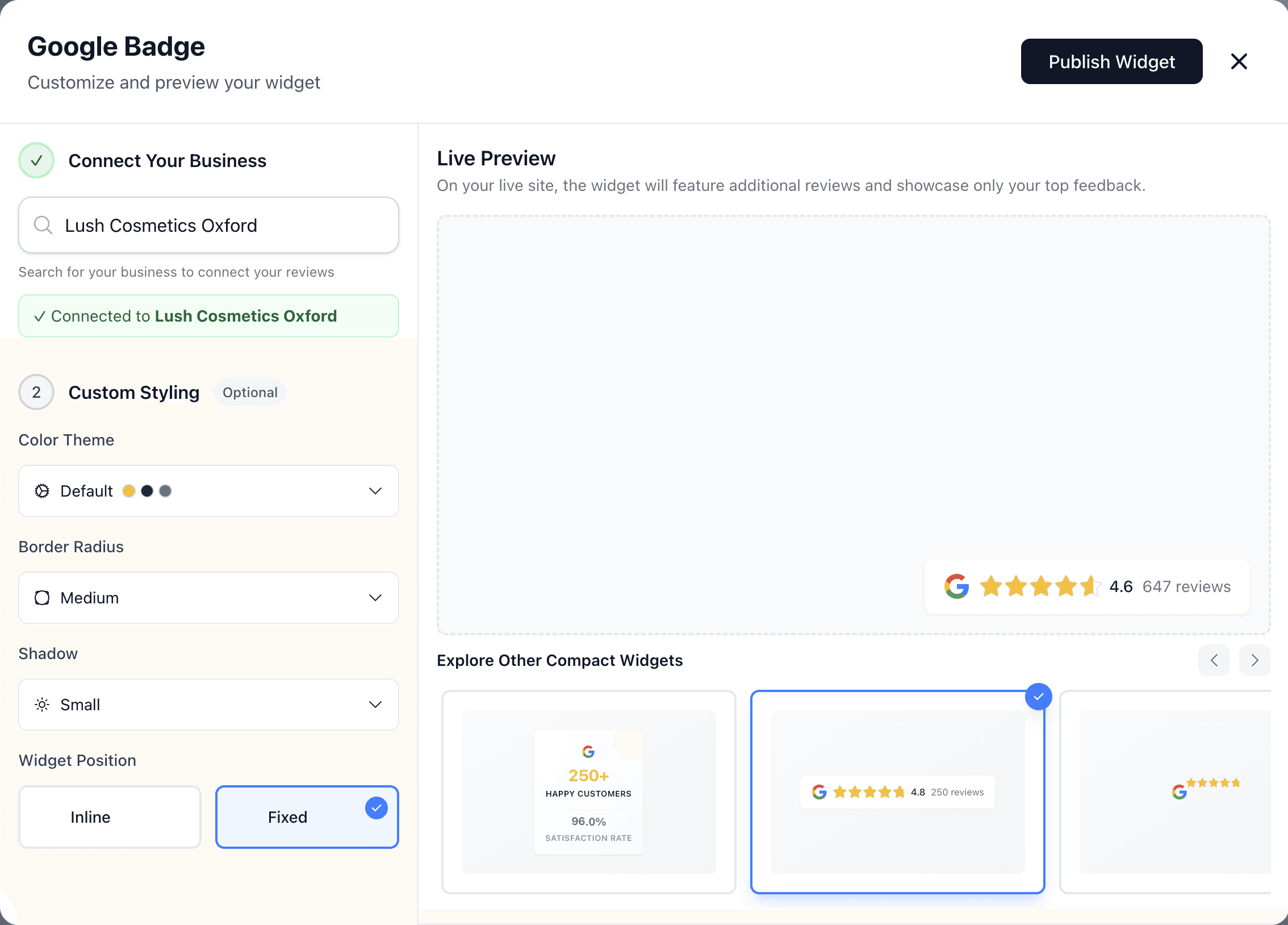
Step 1: Design Your Review Widget
First, create your customized Google review widget:
RevuKit's widget builder lets you customize colors, borders, and preview your Google reviews
Navigate to the page where you want to display reviews (e.g., homepage, about page, services page)
Click the Add Elements button (+) in the left toolbar
Scroll down and select Embed from the Components section
Drag the Embed element onto your canvas where you want the reviews to appear
Click on the Embed element to open the settings panel
Paste your RevuKit embed code into the code field
Click "Save & Close"
Adjust the Embed element's width and positioning to fit your design
Pro Tip: Webflow's Embed element has a character limit of 50,000 characters. RevuKit's code is well under this limit, but if you're adding very complex custom code, keep this in mind.
Step 5: Preview and Publish
Test your Google reviews widget before going live:
Click "Preview" at the top of the Webflow Designer
Verify your Google reviews display correctly with proper styling and your brand colors
Test the mobile view to ensure responsive design (Webflow automatically handles this)
Check that reviews load smoothly without affecting page speed
When satisfied, click "Publish" to make your reviews live
Important: Custom code in Embed elements won't appear in the Designer's Edit mode—you need to use Preview mode or view the published site to see the widget.
Can You Add Google Reviews to Webflow for Free?
Not on the free Starter setup by default. Google review widgets rely on custom code, and Webflow gates custom code features behind paid plans.
In practice, you need either a Core, Growth, Agency, or Freelancer Workspace plan, or an active paid Site plan to embed Google review widgets.
Method 2: Using Custom Code in Site Settings (Site-Wide Placement)
Use this method if you want to display Google reviews on every page of your Webflow site automatically, or if you want to add the code to your site's header or footer area.
Requirements:
Core, Growth, Agency, or Freelancer Workspace plan
OR an active Site plan (Basic, CMS, Business, or Enterprise)
In your Webflow Dashboard, locate your project and click the Settings gear icon
Navigate to the Custom Code tab in the left sidebar
Choose where to inject your code:
Head Code — loads early in the page (use if widget needs to appear quickly)
Footer Code — loads at the end (recommended for better page speed)
Paste your RevuKit embed code into the appropriate field
Click "Save Changes"
Publish your site to see the changes live
Note: Custom Code from Site Settings injects code on every page. If you want the widget to appear in a specific visual location (like your header or footer section), you still need to add a div element with the matching id to your page layout where you want it to render.
Best Locations to Display Reviews on Webflow Sites
Where you place your Google reviews widget significantly impacts conversion rates. Here are the most effective locations for Webflow sites:
Homepage hero section — Build immediate trust above the fold (place widget in a container beneath your main headline)
About page — Reinforce credibility alongside your story and team photos
Services/pricing pages — Reduce hesitation at decision points
Contact page — Encourage visitors to reach out after seeing social proof
Footer section — Consistent trust signals on every page (use a badge or compact widget)
Portfolio/case study pages — Pair project examples with customer testimonials
Customization Tips for Webflow Sites
Make your Google reviews widget blend seamlessly with your Webflow design:
Color Matching:
Use RevuKit's theme selector to match your Webflow site's color variables
Extract exact color codes from your Webflow Style Panel (select any element → Background color → copy hex)
Apply your brand's primary color as the accent color for stars and highlights
Match text colors to your body text and heading colors for cohesive design
Border and Shadow:
Match border radius to your Webflow buttons and cards (check your Button element's border radius)
Use subtle shadows for modern Webflow templates (typically 0px 2px 8px rgba(0,0,0,0.1))
Choose no shadow for minimalist flat designs
Test different shadow depths to match your design system
Layout Integration:
For full-width sections: Use grid or carousel widget styles and place in a container with max-width
For sidebar placements: Use badge or vertical card styles
For grid layouts: Wrap the Embed element in a div block and use Webflow's grid or flexbox
Add consistent padding around the widget to match your section spacing
Responsive Design:
RevuKit widgets are automatically responsive, but you can control the container width per breakpoint
On mobile, consider switching to a vertical stack or badge layout for better readability
Test on Webflow's tablet and mobile breakpoints to ensure proper display
Hide certain widgets on mobile if needed using Webflow's display settings
Troubleshooting Common Issues
If your Google reviews aren't displaying correctly on Webflow, try these solutions:
Widget Not Showing:
Check Preview mode: Custom code won't display in Edit mode—click Preview to see the widget
Verify you copied the complete code (both <div> wrapper and <script> tag)
Check that your Google Business Profile is public and has reviews
Ensure the Embed element has adequate height (Webflow might collapse it if too small)
Clear browser cache and test in incognito mode
Publish your site—changes won't appear on the live site until published
Styling Issues:
RevuKit uses Shadow DOM to prevent style conflicts with Webflow's styles
If spacing looks off, adjust padding on the container div wrapping the Embed element
Check for overlapping Webflow elements with high z-index values blocking the widget
Use RevuKit's style customization options to fine-tune colors and spacing
Mobile Display Problems:
RevuKit widgets are automatically mobile-responsive
Check Webflow's mobile breakpoint settings for the container element
Test on actual mobile devices, not just Webflow's device preview
Consider using a more compact widget style for mobile viewports
Adjust container width to 100% on mobile breakpoints
Performance and Speed:
RevuKit widgets load asynchronously and won't slow down your Webflow site
The script uses the async attribute for non-blocking loading
Typical load time is under 0.2 seconds with minimal impact on Core Web Vitals
Widget uses browser caching for faster repeat visits
Code is served from a global CDN for optimal performance worldwide
Webflow-Specific Tips and Best Practices
Here are expert tips for integrating Google reviews into Webflow projects:
Using Symbols and Components:
Create a Symbol for your review widget to reuse it across multiple pages
Wrap the Embed element in a div block, then convert to Symbol for easy updates
This lets you update the widget code once and see changes everywhere
Collections and CMS:
You can add review widgets to Collection templates for service pages or portfolio items
Place the Embed element in your Collection template layout
All collection pages will automatically display reviews
Interactions and Animations:
You can apply Webflow interactions to the container element wrapping your widget
Try a subtle fade-in or slide-up animation when the widget enters the viewport
Avoid complex transforms that might affect widget rendering
Do Google Reviews Help Webflow SEO?
Yes, displaying Google reviews on your Webflow website can significantly boost your SEO performance in several ways:
Fresh content signals — Automatically updating reviews tell search engines your Webflow site is active
User-generated keywords — Reviews contain natural language customers use to find your business
Increased time on site — Visitors read reviews, reducing bounce rate (important SEO signal)
Social proof improves CTR — Higher click-through rates from search results signal quality to Google
Local SEO boost — Google reviews strengthen local search ranking factors
Rich snippets potential — Review schema markup can lead to star ratings in search results
Adding Google reviews to your Webflow site is one of the most effective SEO improvements you can make, especially for local businesses, consultants, and service providers competing in geographic search results. For the full picture across every platform, see the complete Google review widget guide.
Frequently Asked Questions
Do I need a paid Webflow plan to add Google reviews?
Yes. Google review widgets depend on Webflow custom code access, which requires a Core, Growth, Agency, or Freelancer Workspace plan, or an active Site plan.
Will embedding reviews slow down my Webflow site?
No. RevuKit widgets load asynchronously and won't impact your page load speed. The code is optimized and served from a fast CDN, typically adding less than 0.2 seconds to load time.
How often do reviews update on my Webflow site?
RevuKit Pro and Enterprise plans automatically sync with your Google Business Profile every 24 hours. New reviews appear on your Webflow site without any manual updates needed.
Can I customize which reviews are shown?
RevuKit displays your most recent Google reviews by default. You can configure filters and display settings in your RevuKit dashboard to show specific ratings or review counts.
Is this method compliant with Google's terms of service?
Yes. RevuKit uses Google's official APIs and follows all display guidelines. Reviews are shown exactly as they appear on Google with proper attribution and linking.
Can I add multiple review widgets to different Webflow pages?
Absolutely. You can create different widget styles for different pages (e.g., a badge on your homepage, a detailed grid on your about page) and embed each separately using Embed elements.
Why can't I see the widget in Webflow's Edit mode?
This is normal behavior for custom code in Webflow. Custom code in Embed elements only displays in Preview mode, Comment mode, or on the published site. Click the Preview button at the top of the Designer to see your widget.
Can I use this with Webflow e-commerce?
Yes! Google reviews work great on Webflow e-commerce sites. Place widgets on product pages, checkout pages, or your homepage to build trust and increase conversions. The setup process is identical.
Best Practices for Maximum Impact
To get the most benefit from your Google reviews on Webflow:
Keep collecting reviews — Fresh reviews signal active business and improve SEO
Show a mix of ratings — Displaying only 5-star reviews can look suspicious; 4.2-4.8 stars appears more authentic
Place reviews strategically — High-traffic pages like homepage and services benefit most
Match your brand design — Use colors and styles consistent with your Webflow design system
Test placement and styles — Try different locations and monitor conversion impact in Analytics
Mobile-first thinking — Over 60% of Webflow traffic is mobile, so prioritize mobile display
Use Webflow interactions — Add subtle animations to draw attention to your reviews
Monitor performance — Track how reviews affect bounce rate and conversions using Webflow Analytics
Next Steps
You now know exactly how to add Google reviews to Webflow using two proven methods. Both methods require Webflow custom code access through a paid Workspace tier or an active Site plan.
Whether you want to add Google reviews to your Webflow homepage, display reviews on your services pages, or integrate them across your entire site, both methods give you complete flexibility. The best approach is to use widgets that automatically match your site's design—no manual CSS tweaking required.
Start by designing your widget to match your Webflow site's aesthetic, then follow the step-by-step instructions above. Your Google reviews will be live and building trust within minutes.
Learn how to embed Google reviews on your Wix website in under 5 minutes. Video tutorial and step-by-step guide for beautiful review widgets that match your Wix site design.